See it in action
Real screens from Noor Shield on Windows.
29-day free trial · Early Beta · Windows 10 & 11 · Mac test version
Noor Shield blocks known adult-content sites device-wide on a shared or child's PC and enforces a bedtime internet schedule. Families who want them can switch on Islamic reminders on lowering the gaze, tawbah, and istighfar; others can leave them off. One app for every family.
No account or payment needed to protect this PC · Free for the first 29 days
Real screens from Noor Shield on Windows.
Everything below works together as one system — the full detail on each is in the guide.
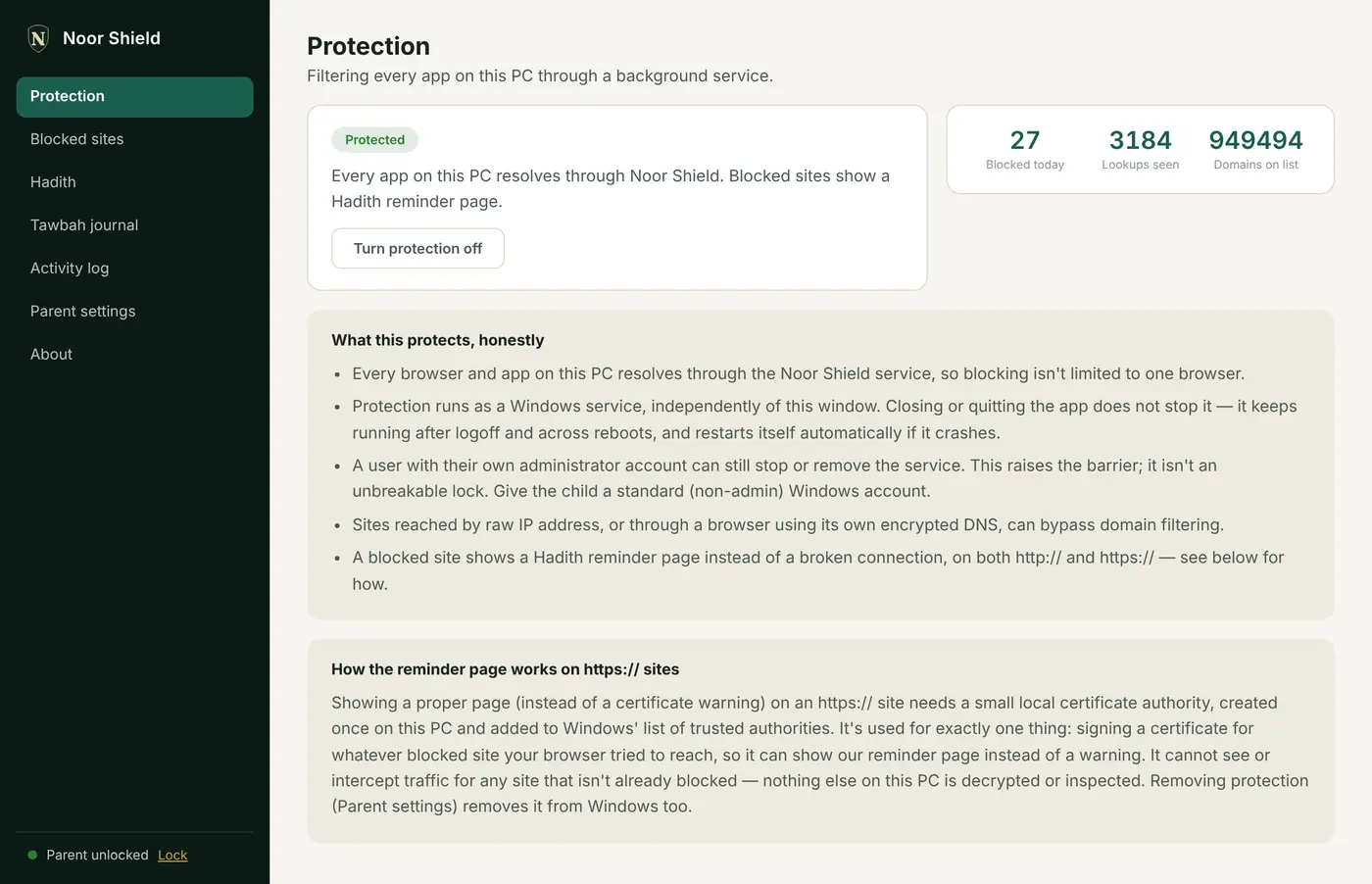
Blocks a large, regularly-refreshed list of known adult-content domains for the whole PC — every browser, every app — not just one browser's settings. Runs as a background service.
Google, Bing, YouTube, and DuckDuckGo are quietly pointed at that provider's own strict safe-search address, so search results filter themselves. Can't be turned off from within the app.
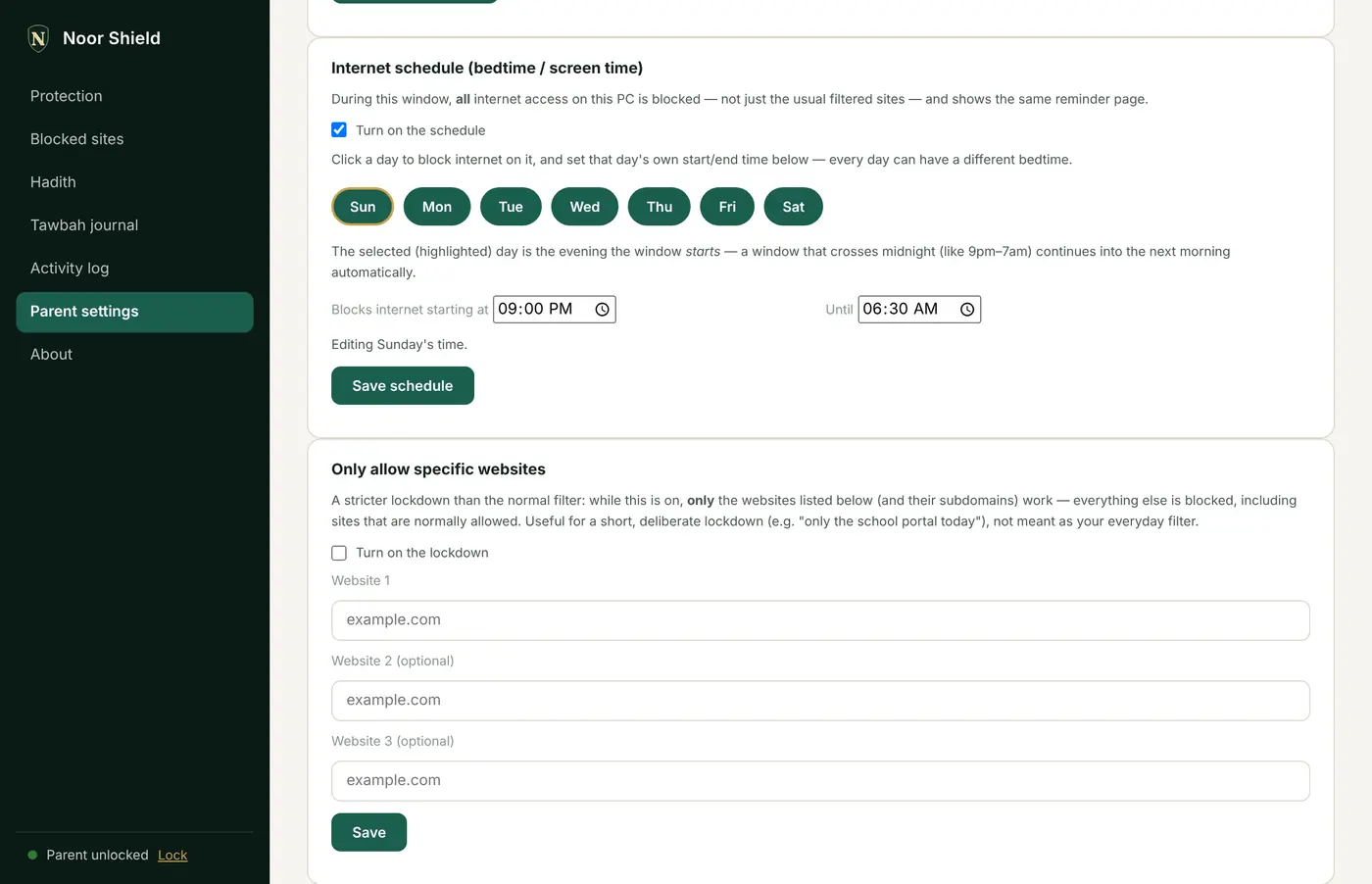
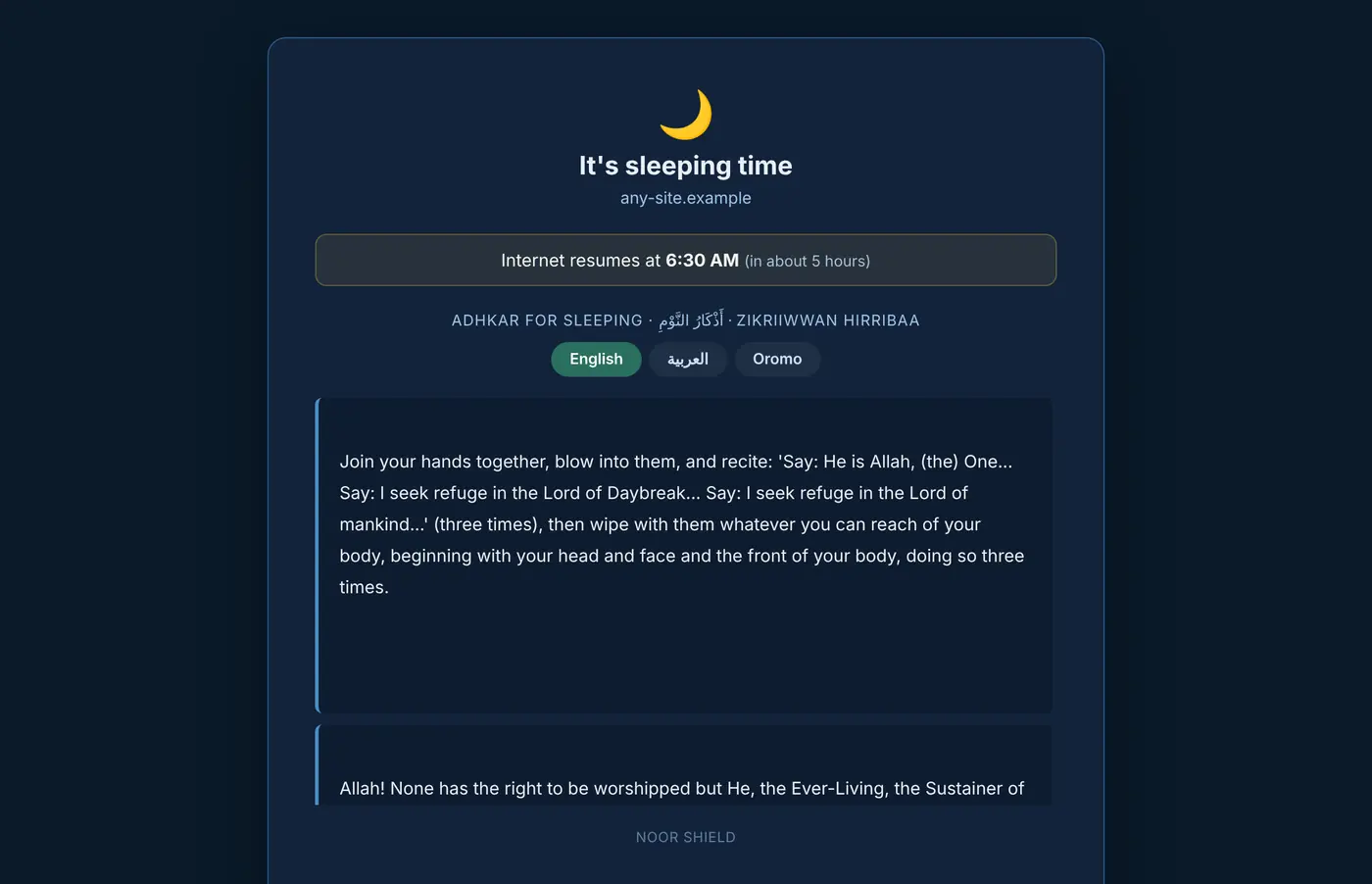
A recurring window (e.g. 9pm–7am on school nights) where all internet on this PC is blocked, not just filtered content — with a calming "sleeping time" page (showing adhkar for sleeping when Islamic reminders are on).
Choose how much internet a day — say two hours. It only counts while someone is actually using the PC, and when it runs out the child can ask a parent for 30 more minutes with one tap.
The internet pauses for a few minutes as each of the five prayers begins, worked out on the PC for your city, calculation method and madhab. Nothing is looked up online.
Tick Roblox, Fortnite, Minecraft, Steam, Discord, TikTok and more — or any program — and it closes within seconds of opening, in every Windows account on the PC.
Link this PC to a family account and, from anywhere, set bedtime and screen time, lock the screen, block sites, answer your child's requests, and get an email if protection is tampered with. A second parent can join. Off by default and entirely optional.
A private, on-this-PC record of what the filter has blocked, protected by a parent password. Email yourself a copy whenever you want one — nothing is sent automatically.
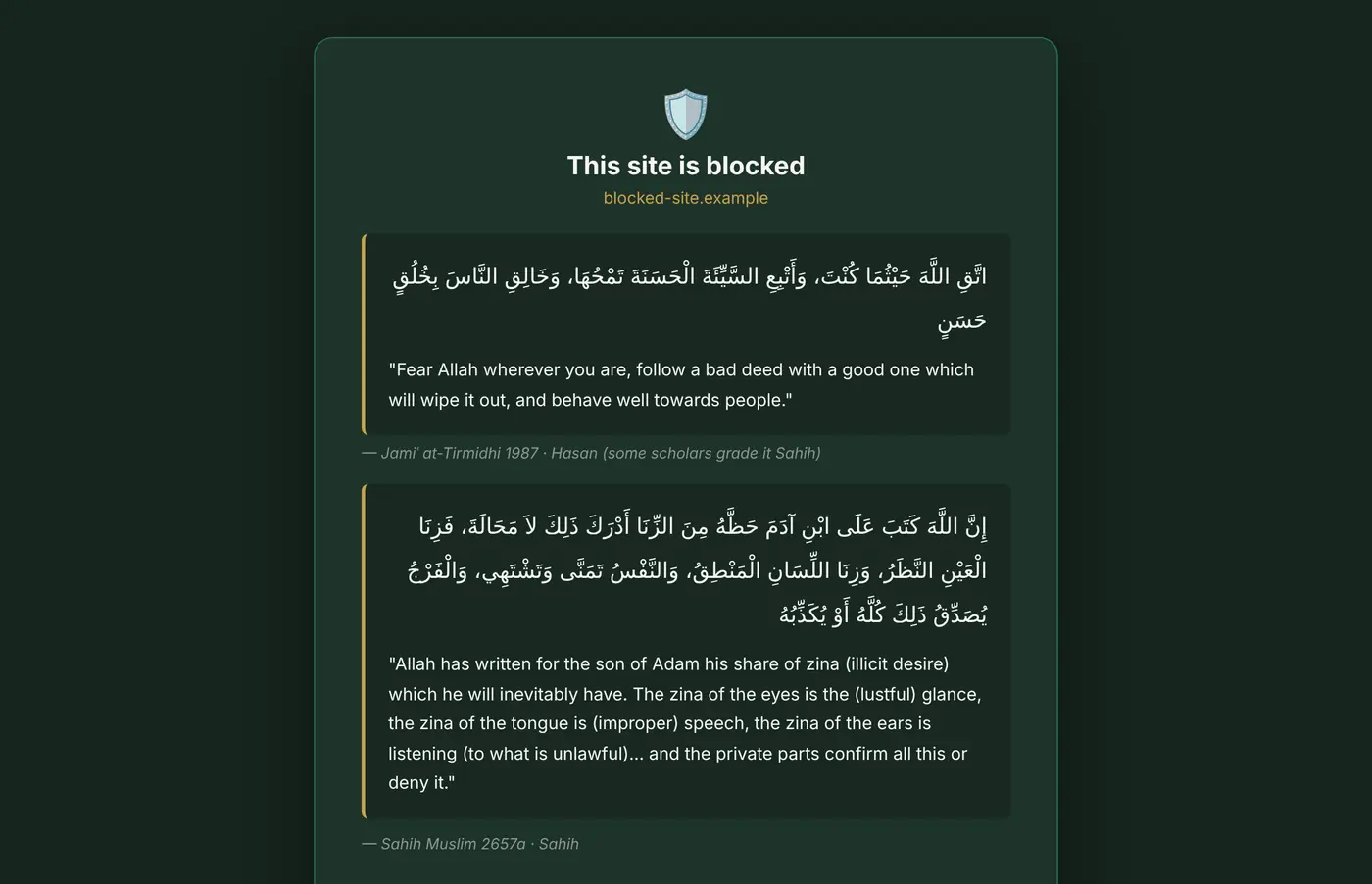
Rotating notifications citing authentic Hadith on lowering the gaze, tawbah, and istighfar, plus a private journal for logging moments of repentance. Choose at setup, change any time in Parent settings — with them off, the app uses friendly, neutral wording instead.
No account, sign-up, or payment needed anywhere in this process.
Download and run the installer as Administrator — it needs this to install its background filtering service and adjust DNS settings.
Windows will show a SmartScreen warning. That's because the installer isn't code-signed yet, not because anything is wrong — click "More info", then "Run anyway".
Open Noor Shield and set a parent password. Write down the one-time recovery key shown right after — it's the only way to reset a forgotten password.
That's it. The dashboard shows "Protection: Active" and the filter is already running.
Free for the first 29 days, with every feature switched on. After that, one product key keeps protection running on that computer.
Get a product key: one device, or a family key for up to 5.
Early beta — please test it on your own PC before relying on it for a family member's
device. Requires Windows 10/11 and Administrator rights to install.
Checksum: Noor-Shield-Setup-0.22.0.exe.sha256.txt next to the download.
From version 0.21, Noor Shield updates itself: it downloads new versions in the background and asks
before installing.
Noor Shield for Mac is ready to try, for macOS 12 (Monterey) or newer on Intel and Apple-chip Macs. It's a test version: it isn't signed by Apple yet, so your Mac asks you to confirm it once, and it doesn't update itself yet.
We're a small team and we read every message. Tell us what works, what doesn't, and what you'd like next. If you're happy for us to share a few of your words on this site, say so, and we'll only use your first name.